Best AI Video Tools for Course Creators
The AI video tools worth paying for as a course creator: editing lessons, captioning shorts, and making thumbnails. What each one is for and what to skip.
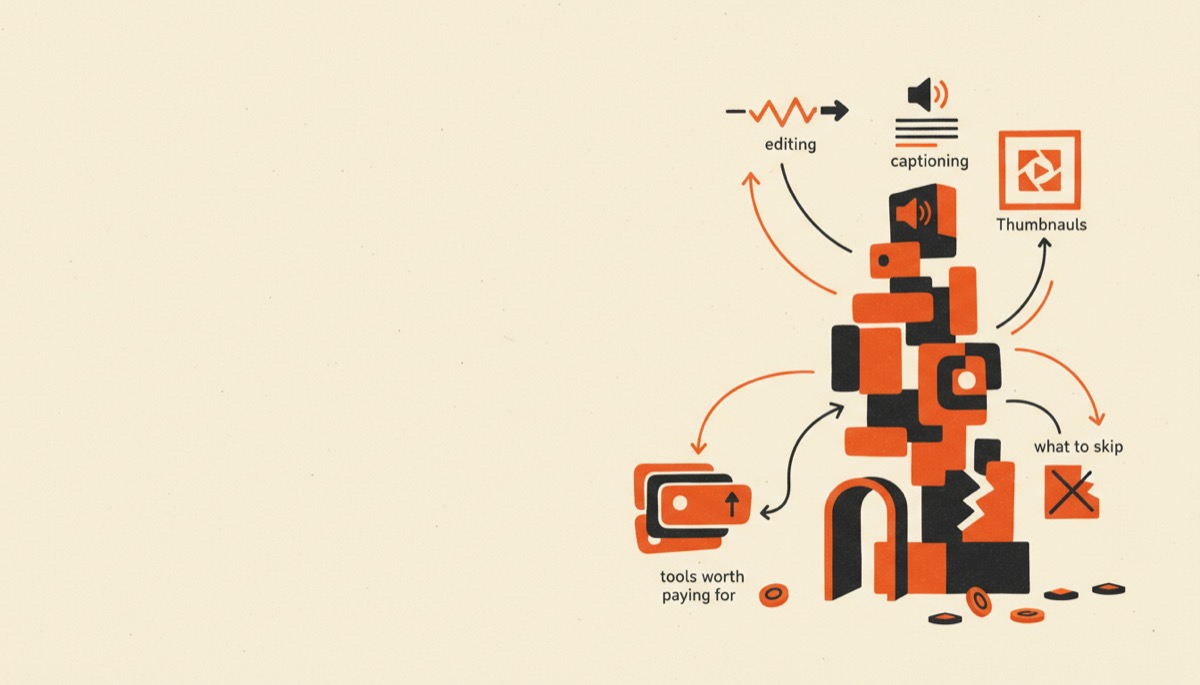
The best AI video tools for course creators are the ones that remove a specific bottleneck, not the ones that promise to make videos for you. Three jobs matter: cutting lesson recordings fast, captioning short clips for social, and producing thumbnails and covers. Different tools win each job, and buying one tool for all three is how you end up with something mediocre at everything.
Bottom line:
- Descript for editing lesson videos — you edit the transcript and the video follows.
- Submagic for captioning and clipping short-form video — faster and better-looking than doing it in an editor.
- Canva for thumbnails, course covers, slides, and the graphics inside your lessons.
The job-to-tool map
| Job | Tool | Pricing model | Why it wins |
|---|---|---|---|
| Cut and clean a 40-minute lesson recording | Descript | Free tier with watermarked exports; paid tiers roughly $16–$35/user/month depending on plan and billing | Transcript-based editing, filler-word removal, studio sound |
| Caption and clip a 60-second vertical video | Submagic | Free tier with watermark and video cap; paid plans from around $19/month monthly, cheaper annually | Captions styled for retention, built for vertical, seconds not minutes |
| Thumbnails, covers, slides, in-lesson graphics | Canva | Free tier is genuinely usable; Pro around $15–$18/month | Templates, brand kit, background removal, magic resize |
All three change pricing periodically and all three have free tiers. Confirm current numbers on their pricing pages before you subscribe, and start free wherever you can.
Editing lessons: Descript
The bottleneck for a course creator is not shooting video, it is cutting 45 minutes of talking down to 22 minutes of teaching. Traditional timeline editors make you scrub waveforms to find the mistake. Descript transcribes the recording and lets you edit the text — delete a sentence in the transcript and the video loses that sentence.
What this actually saves you on a course:
Filler word removal. One click strips the “um,” “uh,” “like,” and “you know” from the entire recording. On a lesson-heavy course this alone is hours.
Studio Sound. An AI audio cleanup that pulls a room-echo recording closer to a treated-room sound. Not magic — it cannot save a recording made in a tiled bathroom — but it reliably lifts a decent USB-mic recording to something you would not apologize for.
Screen recording built in. Record your screen and camera together, then edit both in the same project. For software tutorials this eliminates a whole step.
Overdub and word replacement. Fix a misspoken word without re-recording the section. Useful for correcting a price or a product name that changed after you recorded.
Multi-track for interviews. If your course includes guest interviews, Descript handles separate tracks and speaker labels cleanly.
Where it falls short: Descript is not a motion graphics tool and it is not a color grading tool. If you want cinematic edits, keyframed animation, or heavy VFX, you want a proper NLE. For talking-head lessons and screen recordings — which is 90% of online course video — Descript is the right tool and the productivity difference over a timeline editor is not subtle.
Plans run roughly from a free tier (limited monthly media minutes, watermarked video export) through Hobbyist and Creator tiers in the $16–$35/user/month range depending on billing cycle, with the watermark and the useful export limits lifting as you move up. Check the current tiers — the meaningful line is whichever plan gives you enough monthly media hours for your recording volume and watermark-free export.
Captioning shorts: Submagic
Course creators promote with short vertical clips — a 45-second answer to a common objection, a single tip pulled out of a lesson. Those clips need captions, because most of that audience is watching muted.
You can caption in Descript. You can caption in your phone’s editor. Submagic exists because it does the specific job faster and the output looks like what performs on those platforms: word-by-word highlighted captions, emphasis on keywords, emoji and B-roll suggestions, and styling presets that match what already works in vertical feeds.
The workflow is genuinely 90 seconds: upload the clip, pick a caption style, review the transcript for errors (names and jargon always need a pass), export.
What else it does that matters:
- Auto-clipping — feed it a long video and it proposes short clips with hooks. Note that on Submagic this is generally sold as an add-on rather than bundled into the base plan, so read the plan page before assuming it is included.
- Multi-language captions — useful if your course sells internationally.
- B-roll and sound effect suggestions — mechanical but effective for retention on short clips.
Submagic’s free tier allows a small number of videos per month with a watermark and a short duration cap, which is enough to evaluate it honestly. Paid plans start around $19/month billed monthly and drop substantially on annual billing.
Do not buy Submagic if you post one short a month. Do buy it if short-form is how you fill your email list, because the time-per-clip difference multiplies across every clip you make.
Thumbnails, covers and slides: Canva
Every course needs graphics that are not video: the course cover image, module thumbnails, lesson slides, worksheets, social graphics, sales page imagery.
Canva is the default for good reason. The template library removes the blank-page problem, the brand kit keeps your colors and fonts consistent across dozens of assets, background removal works in one click, and magic resize turns one design into every aspect ratio you need.
The specific uses that matter for a course:
- Course cover and module thumbnails. Build one template, duplicate it per module, change the title and number. Consistency here makes a course look professionally produced for about ten minutes of work.
- Lesson slides. Faster and better-looking than PowerPoint, and they export straight to the format your recording tool wants.
- Worksheets and templates. The downloadable PDFs that make a course feel worth its price. These are often the highest-value deliverable per hour of your time.
- Social and sales page graphics. Same brand kit, different sizes.
Canva’s free tier is genuinely capable — enough to ship a course. Pro adds the brand kit, premium assets, background remover and magic resize, and runs around $15–$18/month depending on billing cycle. The brand kit alone justifies it once you are producing assets at volume. Prices have moved more than once, so check before you subscribe.
Where Canva is the wrong answer: video editing. It has video features, and they are fine for a 15-second animated graphic. They are not a replacement for Descript on a 40-minute lesson.
What to skip
AI avatar and text-to-video generators. Tempting for course creators who dislike being on camera. The problem is that course buyers are buying you — your judgment, your voice, your experience. A synthetic presenter reading your script undercuts the thing they paid for. Use these for localization or throwaway explainers, not for core lessons.
Full-script AI video generation. Output is generic because the input is generic. Your differentiation as a course creator is the specific opinion nobody else has. That does not come out of a prompt.
An expensive NLE you will not learn. Premiere or Final Cut are excellent and irrelevant if your video is a person talking over slides. Buy the tool that matches the format.
The minimum viable stack
Here is the honest version for someone launching their first course:
- Record on whatever you have — a decent USB mic matters far more than a camera upgrade.
- Edit in Descript. Strip filler words, cut the mistakes, run Studio Sound, export.
- Build the cover, thumbnails and worksheets in Canva from one reusable template set.
- Add Submagic only when you start posting short clips consistently.
Total cost at the paid tiers: roughly $50–$70/month, and you can start on free tiers for all three while you test whether the course sells at all.
Once the video is done you still need somewhere to host and sell it — that is a separate decision, covered in the best online course platforms and how to start selling online courses.
FAQ
Can Descript replace my regular video editor?
For talking-head lessons and screen recordings, yes — that covers most course content, and transcript editing is faster than timeline editing for that format. For motion graphics, color grading, or complex multi-camera work, no. Most course creators never need the second category.
Do I need Submagic if Descript already does captions?
Only if short-form is a real channel for you. Descript’s captions are perfectly adequate for embedded lesson videos. Submagic’s value is speed and styling for vertical clips posted to social, where caption design measurably affects watch time.
Is the free Canva plan enough for a course?
Yes, to launch. You get templates, exports and the core editor. The Pro upgrade earns its cost once you are producing many assets and want the brand kit enforcing consistent fonts and colors, plus background removal and magic resize.
Should I use an AI avatar instead of filming myself?
Not for the lessons. Course buyers are paying for your specific perspective and trust, and a synthetic presenter reads as lower effort and lower credibility. AI avatars have a place in localization and low-stakes explainers, not in the content people paid for.
Start with one tool, not three
Pick the bottleneck that is actually blocking you. If editing is why your course is not finished, start with Descript’s free tier and cut your first lesson this week. If the course is built but nothing looks finished, open Canva and build one template set for covers and thumbnails. If you are already shipping lessons and need distribution, test Submagic on three clips.
One tool, one bottleneck. Adding all three at once just gives you three things to learn instead of one course to ship.